
Alarm Analysis: Capturing Alarms & Events from Militarized Network Domains
Overview
Before reading this guide, you should be familiar with Alarm Analysis Network Architecture document. This illustrates possible network installations including scenarios where Alarms & Events are collected from a militarized zone and transferred to another network for processing.
In these scenarios, it is necessary to configure Data Core installations to act as a data relay. Moreover, if the connectivity between relays is unreliable, further configuration is required to guarantee resilient data transfer.
This guide focuses on such a scenario
Data is gathered from serial feed and relayed via a Data Core Node from the Process Information Network to an App Store Connect on the Business Network. The relay is configured for Resilient Data Transfer.
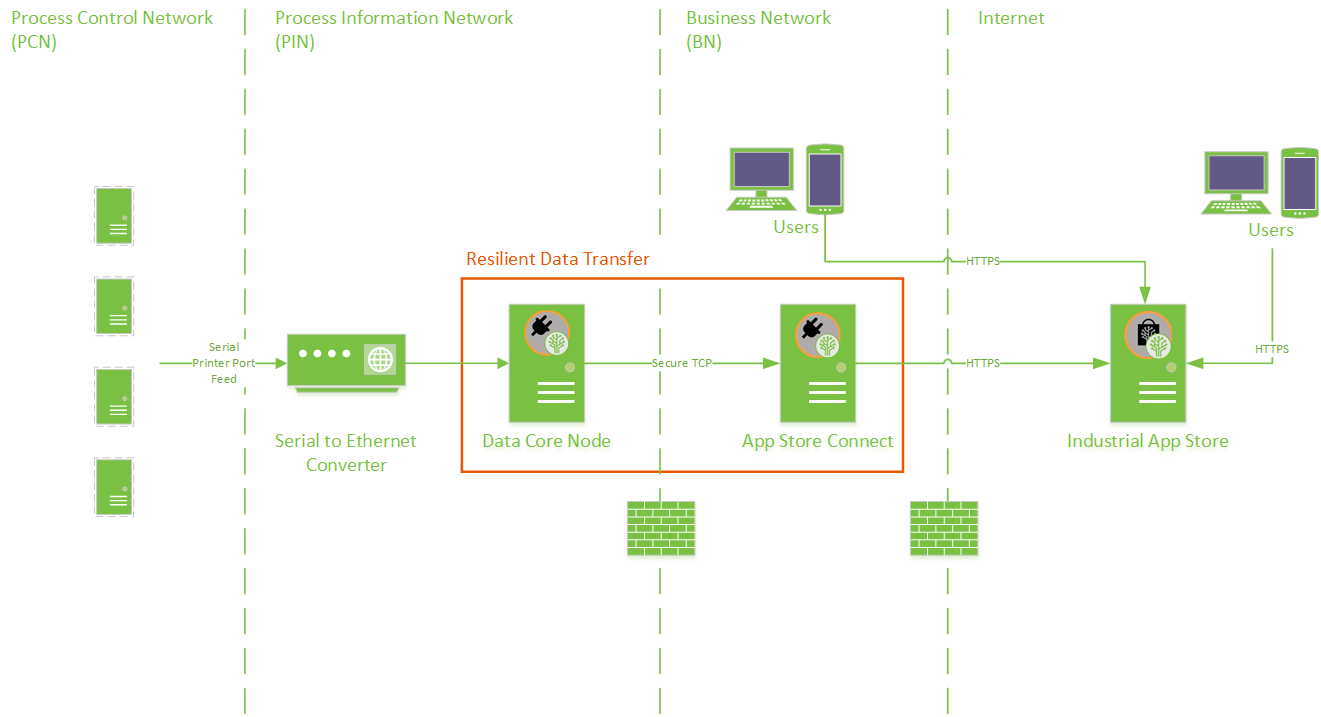
A two box installation is required, with the following Data Core configuration:

- Data Core listens for events (TCP Printer Stream). Arriving events are parsed and sent…
- On an immediate data relay to App Store Connect (Fast TCP Out)
- To a local data repository (Big Data Sink)
- A second process on the Data Core Node polls the local data repository for stored events (Big Data Source) and sends to…
- a further data relay that awaits an Ack from the App Store Connect (TCP Out). If Ack is not received, data is resubmitted.
- App Store Connect listens for incoming events (TCP In) and stores to a local data repository (Big Data Sink).
While connectivity between the PIN and BN is good, all events will reach the destination twice. The fast stream means data arrives quickly, the second stream guarantees resilience. App Store Connect consolidates the two streams to avoid duplication.
Step by Step Install and Configuration
1. Install Data Core Node on PIN
For detailed instructions on how to deploy a Data Core node, see: Data Core: Stand-Alone Installation.
2. Data Core Node Configuration
Configure the following Data Core components (assume default settings unless otherwise stated).
For detailed instructions on how to create an Event Source to Sink subscription, see: Data Core: Create an Event Subscription
| TCP Printer Stream | |
|---|---|
| Type | TCP Printer (Event Source) |
| Description | Listen and parse data arriving on TCP channel |
| Disabled | False |
| TCP Port | 9000 |
| Message Delimiter | New Line {\n} |
| Maximum Characters per Scan | 4000 |
| // Fast TCP Out// | |
|---|---|
| Type | TCP Event Sink (Event Sink) |
| Description | Immediate data transfer to the Business Network |
| Disabled | False |
| TCP Server Host | [ IP Address of server hosting "Fast TCP In" ] |
| TCP Server Port | 11000 |
| Username | [Service account with access to server hosting "Fast TCP In" ] |
| Password | [Service account password with access to server hosting "Fast TCP In" ] |
| Check Response | No |
| //Subscribes to:// | TCP Printer Stream |
| Big Data Sink | |
|---|---|
| Type | Big Data Event Sink (Event Sink) |
| Description | Save data to the Big Data Store |
| Disabled | False |
| Big Data URL | http://localhost:9200 |
| //Subscribes to:// | TCP Printer Stream |
| Big Data Source | |
|---|---|
| Type | Big Data Event Source (Event Source) |
| Description | Retrieve collected data from Big Data Store |
| Disabled | False |
| Paused | False |
| Big Data URL | http://localhost:9200 |
| Index Filter | tcpprinterstream.evt_* |
| Sleep Period | 30 |
| Lag | 60 |
| // TCP Out// | |
|---|---|
| Type | TCP Event Sink (Event Sink) |
| Description | Resilient data transfer to the Business Network |
| Disabled | False |
| TCP Server Host | [ IP Address of server hosting "TCP In" ] |
| TCP Server Port | 11000 |
| Username | [Service account with access to server hosting "TCP In" ] |
| Password | [Service account password with access to server hosting "TCP In" ] |
| Check Response | Yes |
| //Subscribes to:// | Big Data Source |
3. Install App Store Connect on BN
For detailed instructions on how to deploy App Store Connect, see: How to Connect your Data to the App Store
4. App Store Connect Configuration
Configure the following Data Core components (assume default settings unless otherwise stated).
For detailed instructions on how to create an Event Source to Sink subscription, see: Data Core: Create an Event Subscription
| TCP In | |
|---|---|
| Type | TCP Event Source (Event Source) |
| Description | Receive data from Process Information Network |
| Disabled | False |
| TCP Server Port | 11000 |
| Big Data Sink | |
|---|---|
| Type | Big Data Event Sink (Event Sink) |
| Description | Save data to the Big Data Store |
| Disabled | False |
| Big Data URL | http://localhost:9200 |
| Big Data Refresh Interval | 5s |
| //Subscribes to:// | TCP In |
5. Firewall Settings
Firewalls will need to allow passage for the following protocols on ports:
| Firewall | Requirements |
|---|---|
| BN:Internet Network Firewall | TCP Port 443 open to outbound traffic from computer hosting App Store Connect and user machines to: https://appstore.intelligentplant.com https://login.microsoftonline.com * * Required for Microsoft Entra ID log-in. For instructions on enabling log-in to the App Store with business accounts, refer to: App Store Registration for Organisations. |
| Computer hosting App Store Connect | Windows Firewall TCP Port 443 open to outbound traffic TCP Port 11000 open to inbound traffic |
| PIN:BN Network Firewall | TCP Port 11000 open to outbound traffic |
| PCN:PIN Network Firewall | No inbound access required. |
5. Testing
Assuming that the TCP Printer Stream configured above is listening to an active Alarm & Event stream, we should see evidence of data store to the Big Data repositories on the PIN and BN.
A quick test is to execute a URL search query.
- Log on to servers hosting Data Core Node
Open web browser and enter
http://localhost:9200/_cat/indices/tcpprinterstream.evt_*?v
A “doc.count” greater than zero indicates Alarm & Event data is successfully stored.
health status index                          pri rep docs.count docs.deleted store.size pri.store.size
green  open   tcpprinterstream.evtidx_201802   2   0         10            0    211.7kb        211.7kb
A “doc.count” field
- Log on to servers hosting App Store Connect
Open web browser and enter
http://localhost:9200/_cat/indices/tcpin.evt_*?v
You should expect to see something like:
health status index                          pri rep docs.count docs.deleted store.size pri.store.size
green  open   tcpin.evtidx_201802              2   0         10           10    211.7kb        211.7kb
A “doc.count” greater than zero indicates Alarm & Event data is successfully stored.
A “docs.deleted” greater than zero indicates events are arriving on both fast and resilient streams. The data consolidation process marks a duplicate data document for deletion. This is an active measure and clears to zero over time.
6. Next Steps
So far, we’ve moved Alarm & Event data across a network. We are now ready to configure Alarm Analysis processing.
For more info, see How to configure an Alarm & Event Import Stream.