
Increase Big Data Service RAM
By default, the big data service assumes a modest RAM allowance. However, this can be increased for better performance.
Consider increasing memory allocation up to up to 1/3rd of a server’s available RAM (no more than 32GB).[1]
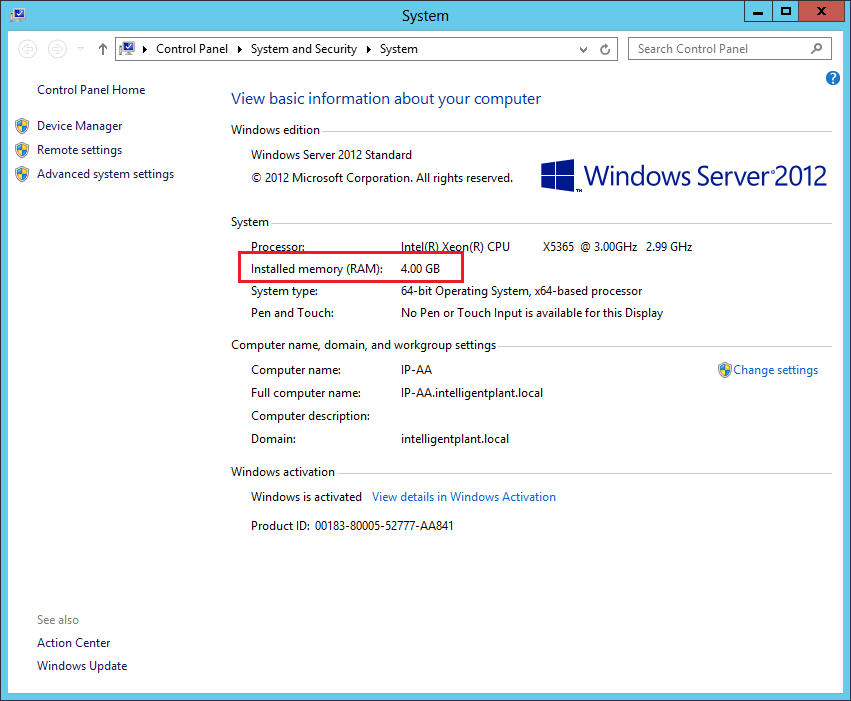
- Check available server memory to determine available RAM
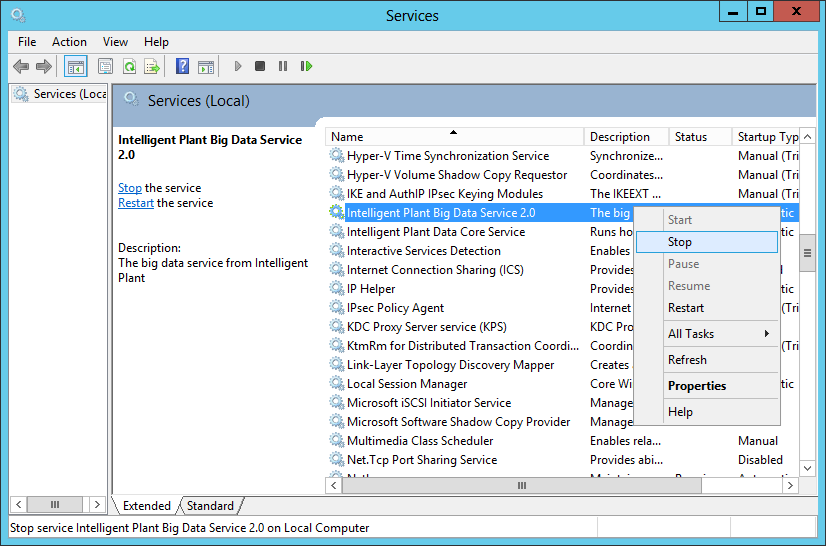
- Stop the Big Data Service
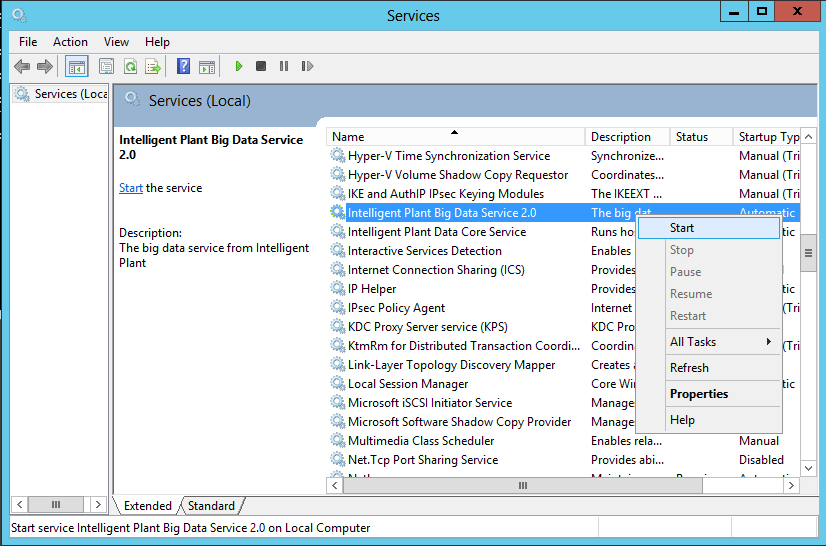
- Open Windows Services.
- Find “Intelligent Plant Big Data Service”.
- Right click, and select “Stop”.
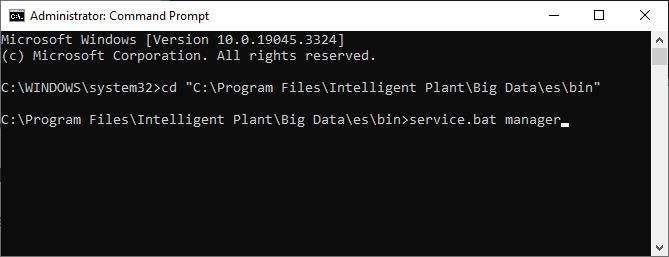
- Launch the Big Data Service manager
- Open a cmd prompt in administrator mode.
- Navigate to %ProgramFiles%\Intelligent Plant\Big Data\es\bin\
- Enter: service.bat manager
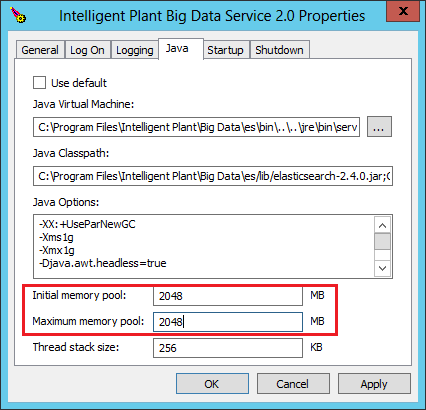
- Under Java properties, increase the Initial and Maximum memory pools.
In this example, we’ve increased it from 1024MB to 2048MB.
Click apply and close the properties window.
- Restart the Big Data Service
- Open Windows Services.
- Find “Intelligent Plant Big Data Service”. Right click, then select “Start”.
Warning. These custom settings will be reset if software is re-installed/upgraded.