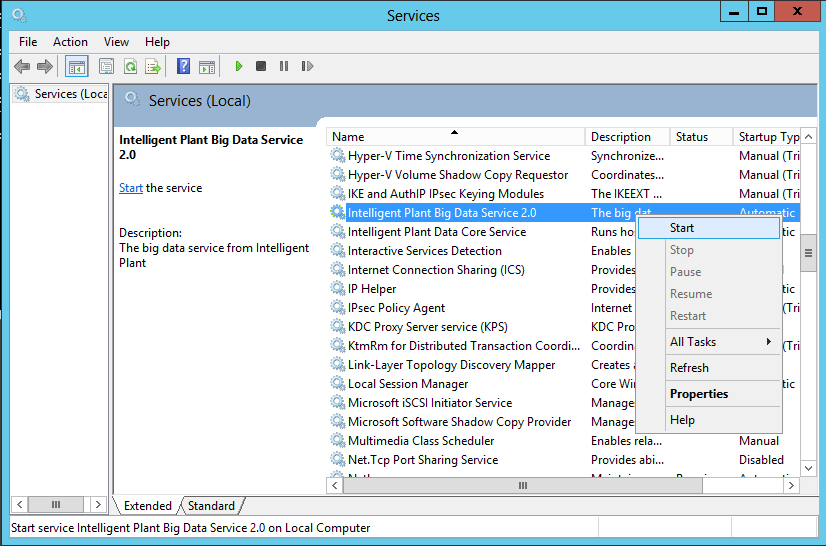
Modify Big Data Storage Location
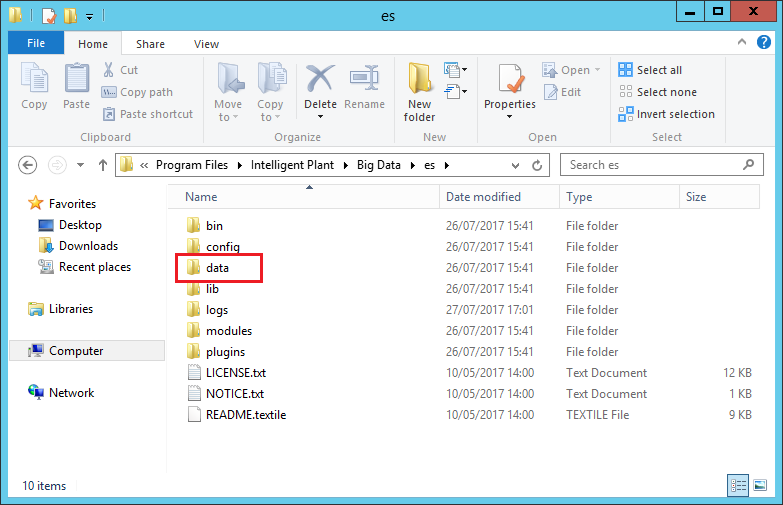
By default, the Big Data Service creates a data file repository under the install location:
- C:\Program Files\Intelligent Plant\Big Data\es\data
To set this to an alternative location (e.g. a dedicated data volume) do the following:
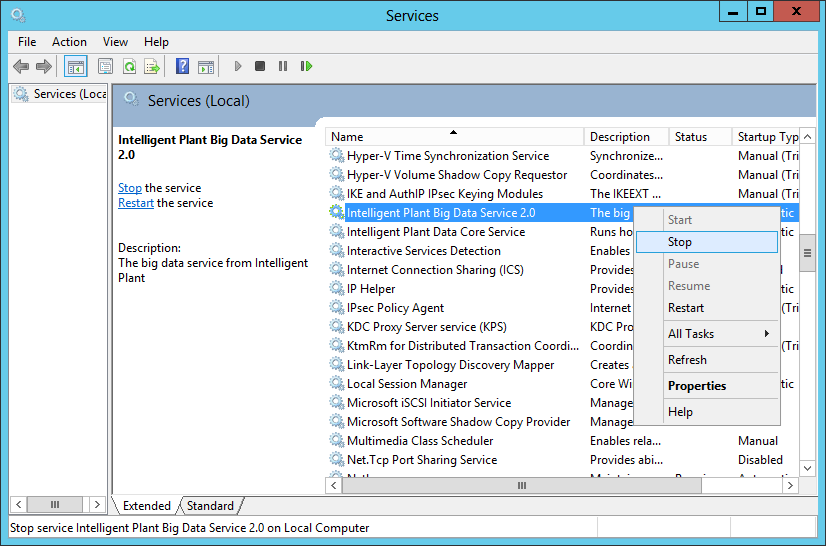
1. Stop the Big Data Service
Open Windows Services.
Find “Intelligent Plant Big Data Service”.
Right click, then select “Stop”.
2. Move data folder
Move data folder “C:\Program Files\Intelligent Plant\Big Data\es\data” to preferred location (e.g. D drive)
3. Edit Elasticsearch configuration file
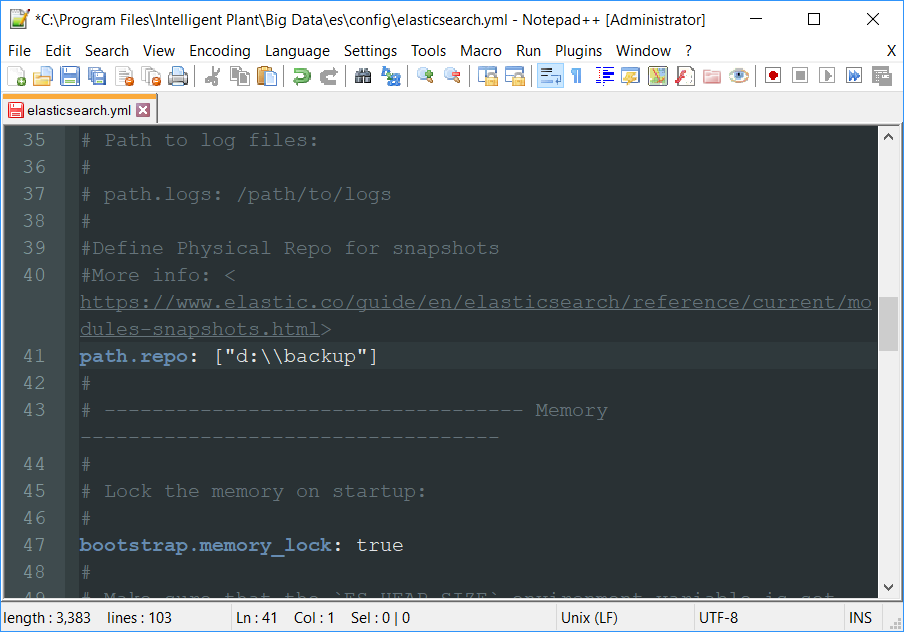
Open “C:\Program Files\Intelligent Plant\Big Data\es\config\elasticsearch.yml”
This is a text file using YAML format that can be edited in most text editors.
Uncomment line containing the “path.data” key and set to the new data folder location.
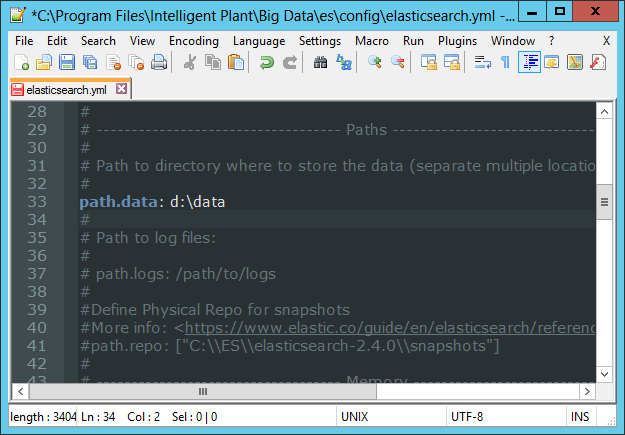
To change back up folder (from default “C:\Program Files\Intelligent Plant\Big Data\es\backup” location, specify alternative on “path.repo” key. (NB. Backslashes must be escaped.)
4. Restart the Big Data Service
Open Windows Services.
Find “Intelligent Plant Big Data Service”.
Right click, then select “Start”.